Embed your AIngel on WordPress
Most WordPress sites won't let you paste a raw embed script into a page, and not everyone has theme or FTP access. This plugin adds your AIngel from a simple settings screen instead — as a shortcode on specific pages, a site-wide floating button, or both. No code, no developer needed.
Download the plugin
Get the latest myaingel-embed.zip — completely free, no WordPress.org account needed.
Upload it
In your WordPress admin, go to Plugins → Add New → Upload Plugin, choose the zip you downloaded, and click Install Now.
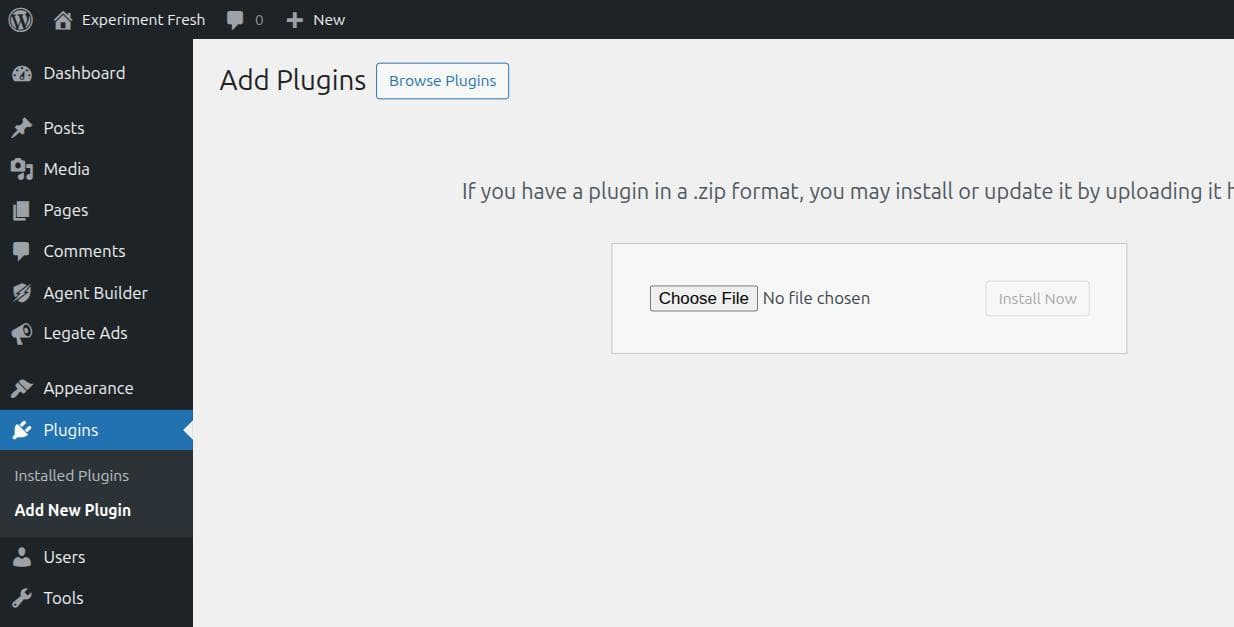
Install & activate
WordPress unpacks and installs it in a few seconds. Click Activate Plugin once it's done.
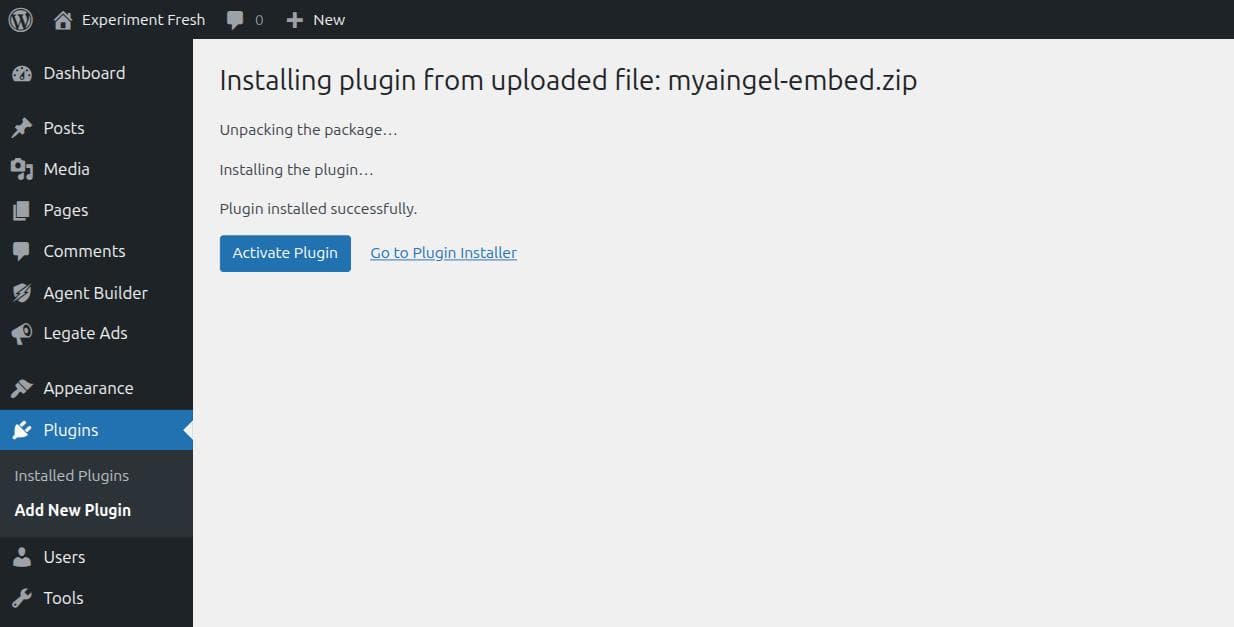
Add your AIngel slug
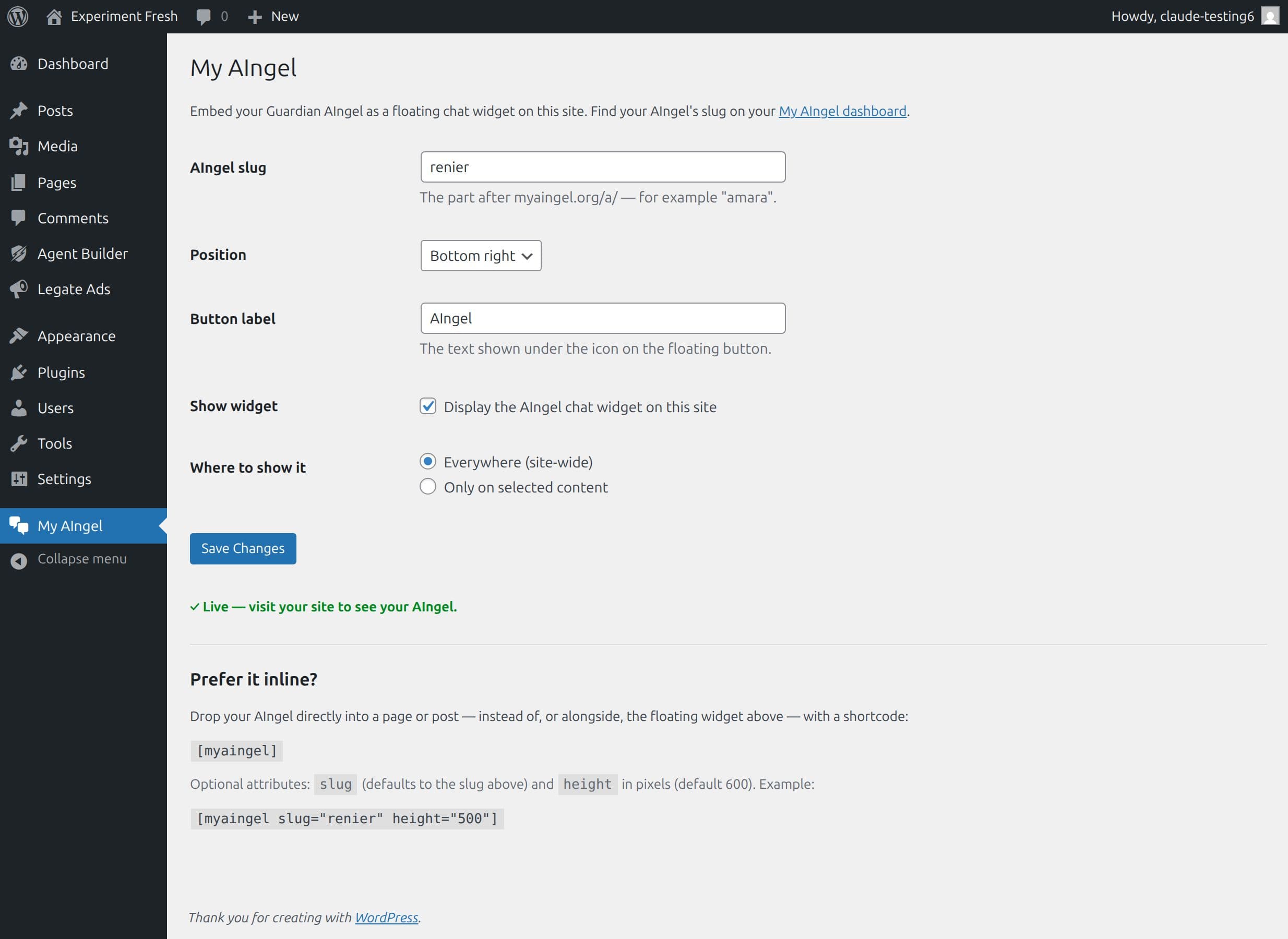
Look for My AIngel in your admin sidebar — it's its own menu item, not tucked under Settings. Paste in your AIngel's slug (the part after myaingel.org/a/) and click Save Changes — that's all the shortcode below needs. Leave Display the AIngel chat widget unchecked for now; it's optional and only adds a site-wide floating button (more on that at the end).
Use the shortcode
RecommendedDrop [myaingel] into any page or post — it embeds your AIngel directly in the content, exactly where you put it. This is the recommended way to add your AIngel if you don't want a floating button showing on every page. Optional attributes: slug and height, e.g. [myaingel height="500"].
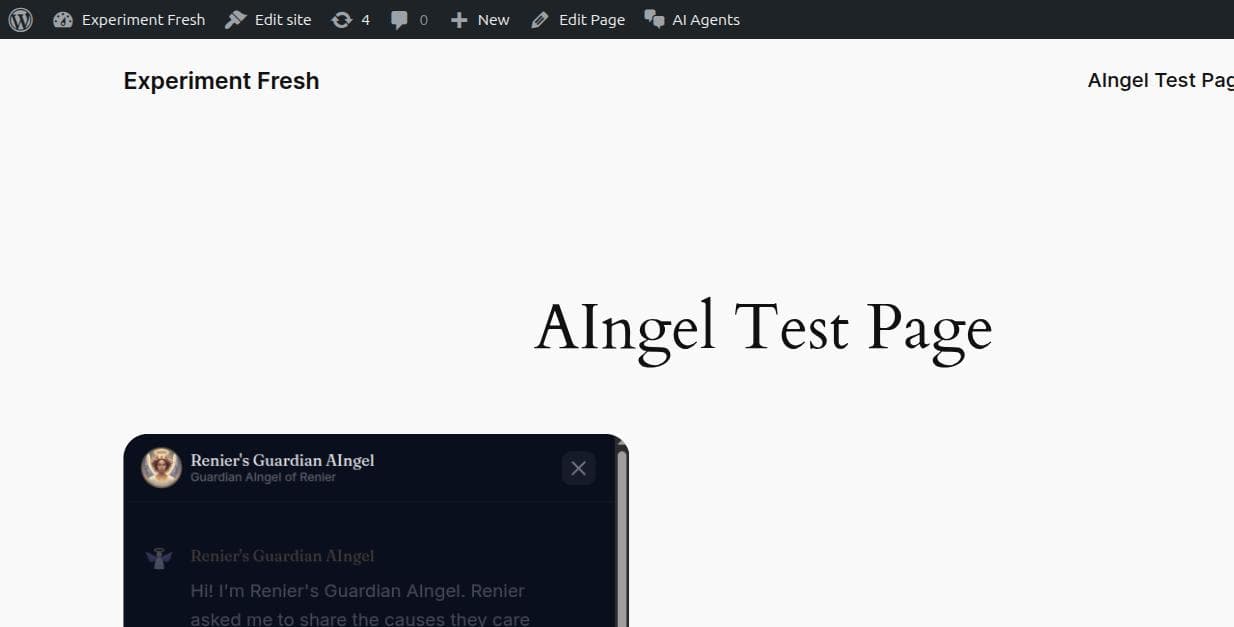
Optional: add the floating widget too
Want a chat button that follows visitors around your site? Go back to My AIngel, check Display the AIngel chat widget, pick a corner, and save. Want it on some pages only instead of everywhere? Set Where to show it to "Only on selected content" and pick the homepage, Pages, Posts, or specific categories/tags.

Stuck, or found a bug? Email [email protected] or open an issue on GitHub.